
You can start typing inside the RTE and then add formatting to the text to create headings, block quotes, bold or italic text, and links.
Just like any other text editor, pressing enter will create a new paragraph on a new line where you can continue to type.

To create a heading, you just select any text inside of a paragraph and choose a heading (H1-H6) option. Same goes for creating block quotes.

Any part of any text element (e.g. headings, paragraphs, captions, etc) can be formatted with bold, italics and links. Just select part of the text and apply one or more formatting options.
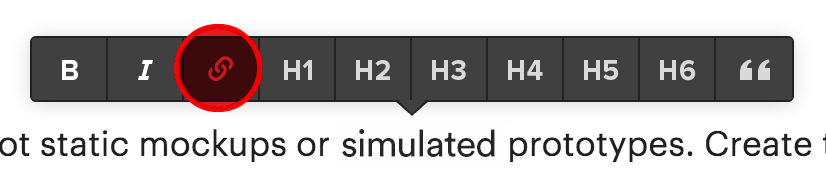
Step 1: With text highlighted, select the chain icon. Enter the URL into the dialogue box that appears.

Step 2: Once you've selected the link icon for some text, you can choose to link to a web address, email, or even phone number.
These keyboard shortcuts let you add a few special characters or design a bit faster:
When your text cursor is on a new line, a plus button appears. Clicking this button will show options to add bulleted or numbered lists, as well as images and videos. (I do suggest we add a place for videos if this is something we realize we need.)

Add a bullet list is by simply typing in a dash (-) followed by a space
Add a numbered list is by typing a number followed by a period (eg. 1. , 3. or 10.) followed by a space. This is useful especially when you want to continue a numbered list after you've added some media in between the list items. Just type the next number followed by a period and a space.
You can paste in rich content from other sites or from a word processor like Microsoft Word. This will bring in all formatting and links. Pasted images will not be uploaded.
Pasting content from other sources may bring along unwanted formatting like background color which may look weird on your site. So, be mindful when pasting rich text from other sources.